

IJ7 Deposit: Add Money Through the Wallet
To make an IJ7 Deposit, sign in to IJ7 Game and open Wallet → Deposit. The app separates Deposit and Withdraw into different wallet tabs. Check that Deposit is selected before choosing a payment amount or viewing the payment options. This guide follows the funding steps shown in the IJ7 interface rather than substituting a generic wallet procedure.
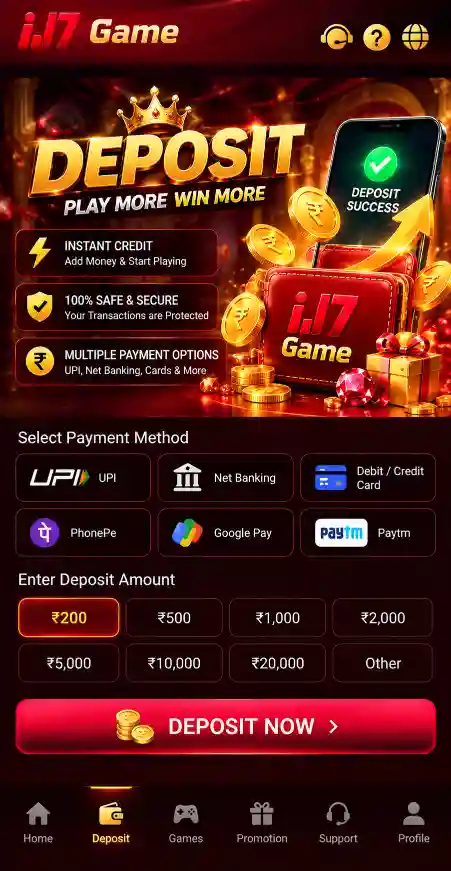
The supplied IJ7 deposit screen shows amounts from ₹100 to ₹5,000, payment modes including PayTM, PhonePe and QR Code, a Pay Now action, and a displayed first-deposit offer with a 3× deposit wagering condition. These are details from the supplied app interface; the amounts, methods and promotional terms available on your current account may change. Always review the active screen before authorising a payment.
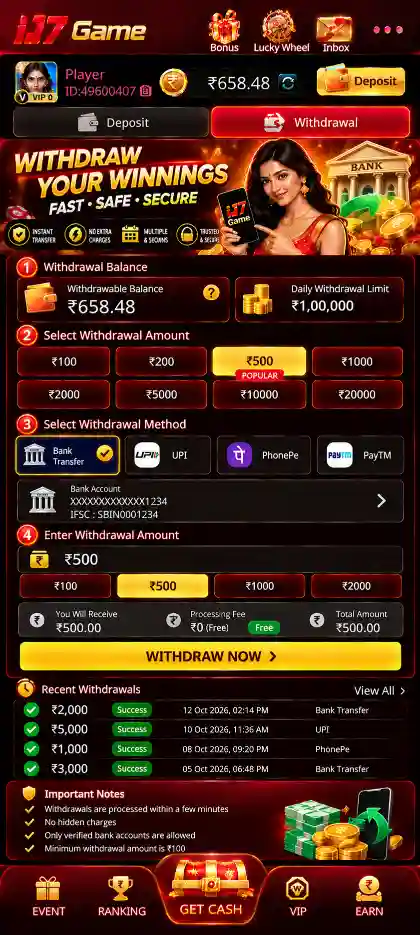
Already paid and waiting for a balance update? Go to Deposit Status or Delayed Payment Help. For account access, use the IJ7 Login guide. Withdrawals use a different process explained on the IJ7 Withdrawal page.
How to Deposit Money in IJ7 Game
Complete the steps inside your own IJ7 account, where the app provides the amount choices and payment instructions for that attempt.
- Open IJ7 Game. Sign in with the registered mobile number using your configured login method.
- Choose Wallet → Deposit. Check that the Deposit tab—not Withdraw—is active.
- Select a deposit amount. The supplied screen displays choices within ₹100–₹5,000. Pick an amount that is currently offered on your screen and is within your budget.
- Select the payment mode. PayTM, PhonePe and QR Code are shown in the supplied interface; choose only a method actually available for your transaction.
- Review the payment screen. Verify the amount, the payment destination, any first-deposit bonus and its wagering conditions.
- Tap Pay Now. Follow the on-screen payment flow. If a QR code is displayed, use the current code for this transaction rather than a saved or forwarded QR image.
- Check payment confirmation. Look for the provider's result and preserve the transaction ID or reference, amount and time.
- Return to IJ7 Wallet. Review the balance and any deposit history or transaction status available for the same payment.
Do not press Pay Now repeatedly because the screen seems slow. First check whether your bank or payment app recorded the payment and whether IJ7 shows a pending entry. A second payment can create a separate transaction rather than resolving the first.
IJ7 Deposit Payment Methods: PayTM, PhonePe and QR Code
The supplied IJ7 Deposit interface shows PayTM, PhonePe and QR Code choices. Those labels describe the options shown on that screen, not a permanent promise that every account, region or payment session will offer all three. The payment destination may be generated for the active transaction, so recheck it every time.
When PayTM is available, follow the hand-off or payment instructions presented by IJ7. Confirm the amount and recipient on the payment side before approval.
When PhonePe is available, complete the requested payment using the active transaction details. Do not treat an opened payment app as proof of a successful deposit.
Scan the QR code displayed for your current deposit attempt. Avoid saved images and QR codes shared through messages, since their destination may not match your session.
After your payment app shows a result, return to IJ7 and check whether your wallet balance or transaction history reflects that amount.
What to Check Before Tapping Pay Now
A good payment check takes only a few moments but prevents difficult disputes. Look at the amount you selected, the amount the payment app is requesting and the recipient shown in the current flow. They should correspond to the payment you intend to make. If details look unfamiliar or inconsistent, stop rather than approving the transfer.
Also read any first-deposit reward conditions before paying. The supplied IJ7 screen presents a 3× deposit wagering requirement for its first-deposit promotion. Wagering requirements concern eligibility or use of a promotion; they are not an assurance of winnings or withdrawals. An available offer may depend on account eligibility, timing and the terms shown in the app. See the IJ7 Bonus guide for the separate reward topic.
Inside the IJ7 Game App
The IJ7 app includes a deposit screen for payment options and account areas for reviewing wallet activity. Always use the payment details currently displayed during your transaction rather than information copied from an older session.













IJ7 Deposit Status: Payment Successful, Pending or Failed
Payment status and in-app balance are two separate details to review. A bank or payment-app confirmation is useful for tracing the transfer, while the IJ7 transaction or wallet screen helps you see whether the account credit has been recorded.
| Pending | The transaction is still being processed. Check its status before making another attempt. |
|---|---|
| Successful payment | Keep the reference number and check whether the corresponding account credit has been recorded. |
| Unsuccessful payment | Review the payment provider's status and whether funds were actually deducted. |
| Balance not updated | Check deposit history and retain the amount, time and transaction reference for follow-up. |
What to Do if IJ7 Balance Does Not Update
When a transfer shows as completed but your account balance has not changed, first confirm you are signed in to the intended IJ7 account. Refresh the wallet or transaction history after checking your connection. Compare the amount, time and reference in your payment receipt with the relevant deposit record.
If the balance still does not match, contact the assistance option available in the IJ7 app and provide the transaction amount, date, time and reference number. Share only the information needed to identify the transaction; never send passwords, OTPs or security codes. Avoid repeated payment attempts until the earlier transfer's status has been clarified.
IJ7 Deposit Not Credited: 1–5 Minute and 30-Minute Guidance
The supplied IJ7 screen says deposits are usually credited within 1–5 minutes. “Usually” describes the guidance displayed in the interface, not a guaranteed credit time. Payment network delays, pending authorisations or a mismatch between the payment record and wallet may cause a longer wait.
If the funds have been deducted, first check the payment provider's status and your IJ7 wallet again. The supplied screen advises contacting customer service if the deposit has not arrived after 30 minutes. At that stage, use the help channel available through your IJ7 account and provide the amount, transaction time and payment reference. Protect your PIN, login password and OTP; support should not need them to identify a payment.
When reporting the issue, explain whether the provider marked the payment successful, pending or failed, and whether an IJ7 deposit-history entry exists. Avoid sending a fresh payment merely to test the system while the earlier one remains unresolved.
IJ7 Deposit Problems and Troubleshooting
Confirm your network connection, close and reopen the app, then return to the account or wallet area.
Check the requested fields and payment-provider response. Avoid multiple taps that could create duplicate requests.
Stop before completing the payment and review the entered amount, selected method and current instructions.
Keep the payment reference and compare your payment history with your IJ7 deposit history.
Try a stable connection and reopen the history page before sending another payment.
Check both transactions separately. Preserve both reference numbers for any follow-up.
IJ7 Deposit and Payment Safety
Payments deserve extra attention because a mistaken transfer may be difficult to reverse. Use the details displayed in your active IJ7 payment session, read any browser or payment-app warning, and protect account credentials. Do not transfer money to a contact who claims they can guarantee winnings, change game outcomes or unlock secret rewards.
- Verify the payment amount and recipient before confirming.
- Never share an OTP, account password, PIN or payment authentication code.
- Do not use forwarded payment details in place of the current in-app instructions.
- Keep receipts and transaction references without exposing sensitive banking information.
- Review the financial risks and rules for participation in your location.
- Use the Trust & Safety and Responsible Gaming pages for additional guidance.
IJ7 Deposit and Bonus Offers
A deposit and a bonus are different account events. The supplied first-deposit offer screen shows a 3× deposit wagering condition; check the active conditions before participating. A promotion may have separate eligibility conditions, activation steps, validity dates or usage rules. Adding money does not automatically mean every advertised reward applies to your account. IJ7 has a ₹200–₹500 welcome-bonus range. Bonus eligibility and how a reward applies to deposits depend on the offer conditions displayed in the app.
Read the IJ7 Bonus guide for reward conditions, and use the IJ7 App guide for app navigation. This deposit page remains focused on funding and payment records rather than duplicating the full Bonus or APK instructions.
IJ7 Deposit FAQs
How do I make an IJ7 Deposit?
Sign in, open Wallet → Deposit, choose a displayed amount and payment method, review the details, tap Pay Now, then check wallet credit.
Where is the deposit option in IJ7 Game?
Open Wallet and select the Deposit tab. Withdraw is a separate tab.
Does IJ7 support PayTM, PhonePe and QR deposits?
The supplied IJ7 Deposit screen shows PayTM, PhonePe and QR Code. Confirm which options are currently available in your own wallet session before paying.
Why is my IJ7 deposit not showing?
First check the payment status and transaction history. If payment succeeded but the app balance has not changed, keep the reference number and use the available support channel.
What if my deposit has not arrived after 30 minutes?
The supplied IJ7 screen directs users to customer service after 30 minutes. Check payment status first and retain the amount, date, time and reference number for support.
Can I make the same deposit twice if one is pending?
Avoid sending a duplicate payment while the earlier transaction is still pending. Check its status first.
What should I check before paying?
Review the recipient, amount and instructions presented in your current deposit session, and confirm the details before authorizing payment.
What details should I keep after a payment?
Save the transaction reference, amount, date, payment status and a receipt if one is provided.
Can I cancel a completed IJ7 deposit?
The possibility of cancellation depends on the payment method and transaction status. Review the payment provider and in-app support instructions.
What does the IJ7 first-deposit 3× wagering condition mean?
The supplied offer screen describes a wagering requirement of three times the deposit. Check the current promotion terms and whether the condition applies to your account; the offer does not guarantee earnings.
Is IJ7 Deposit the same as Withdrawal?
No. A deposit adds funds to an account, while a withdrawal requests a transfer out of an eligible balance. Each process has separate checks and rules.
For Android installation, see IJ7 APK. For download help, see IJ7 Game Download. For sign-in assistance, visit IJ7 Login.