

IJ7 APK for Android
IJ7 APK is the Android installation package for IJ7 Game. The APK is the file Android uses to install the application; after setup, IJ7 opens from the app icon on your phone. If you have not installed IJ7 before, start with the download button above, complete the mobile-number confirmation and save the full package before opening it.
Version 2.3.5 has a file size of 21.87 MB, with the package named IJ7.apk. This page covers the steps that happen after the file is downloaded: checking the package, allowing installation through Android, completing setup, updating an existing installation and resolving package errors. For the browser transfer and mobile-number confirmation stage, visit the IJ7 Game Download guide.
The downloaded package is not the account itself. Installing IJ7 adds the app to the device, while account access happens inside the installed app using a mobile number and the verification or login method available to that account. Keeping those stages separate makes it easier to identify whether a problem belongs to the browser, Android installer or IJ7 account screen.
IJ7 Game APK Information
The app brings together a gaming lobby, account controls, mobile verification, promotions and wallet functions. After installation, the lobby provides entry points for games such as Aviator, Mines, Plinko, Slots, Rummy and Teen Patti. The current game collection and offers appear inside IJ7 itself; they are separate from the Android package installation process.













IJ7 APK and IJ7 App: What Is the Difference?
The terms IJ7 APK and IJ7 App describe two stages of the same Android application. The APK is the installation file stored on your device. The app is the installed program that opens from your home screen or app drawer. You do not need to open IJ7.apk each time you want to use IJ7 after installation succeeds.
- APK file: the package downloaded through your browser and saved to device storage.
- Android installer: the system screen that checks the package and asks for installation approval.
- Installed IJ7 app: the application opened after Android reports successful installation.
- Update package: an APK with a compatible version and signing identity that Android can use to update the current app.
If IJ7 is already installed and working, downloading another copy of the same APK is not required for routine login. Use the app icon instead. A fresh package is relevant when you are installing IJ7 on a new device, reinstalling after a valid removal or applying a compatible update.
Before Installing IJ7 APK
Check your Android phone before starting. A completed download, enough available space and a working connection simplify setup. The APK itself is 21.87 MB, but Android may need additional temporary storage to unpack the application and complete installation. If the device is almost full, clear unnecessary files first rather than retrying the installer repeatedly.
- Confirm that the downloaded file is IJ7.apk and that the browser has finished saving it.
- Use the download destination you intended to open; inspect the address before entering a mobile number.
- Keep sufficient free storage for installation as well as the package file.
- Check that the phone can open Android package files through Downloads or File Manager.
- Do not use an altered package claiming unlimited credits, prediction tools or modified game results.
- If an earlier IJ7 installation exists, do not uninstall it solely because an update attempt fails.
The Android installer may display the app name and requested permissions. Review them rather than automatically accepting every prompt. Installation permissions are device controls and should not be confused with app permissions requested after the installation has finished.
How to Get the IJ7 Game APK File
Start from the IJ7 Game Download button. The linked download page uses mobile-number confirmation before the package transfer. This is a browser step; it does not mean the app has been installed yet.
- Tap IJ7 Game Download to open the download destination.
- Enter the active mobile number you intend to use for IJ7.
- Review the number and choose Confirm.
- Allow the APK download to begin in the browser.
- Wait until the browser shows that the transfer is complete.
- Open Downloads or your phone's File Manager.
- Locate the completed IJ7.apk package before starting installation.
If you do not see a completed file, look in the browser's download history. Some phones display a finished download as a notification; others store it only in the browser download manager. Avoid tapping the download button many times, because that can leave several files with similar names. Open the most recent completed package only after checking that it came from the intended download.
How to Install IJ7 APK on Android
Installing the package is handled by Android. Exact menu labels can differ between phone brands and Android versions, but the sequence remains straightforward: open the downloaded package, review the source permission, approve installation if the source is trusted and wait until Android finishes.
Step 1: Open the Completed IJ7.apk File
Open the Downloads app, your browser's downloads page or File Manager. Locate IJ7.apk and tap it once. If the file cannot be opened, confirm that its download is complete. A partial file, temporary browser file or damaged package is not suitable for installation.
Step 2: Review the Installation Source
Android may ask whether the browser or File Manager is permitted to install downloaded applications. The permission belongs to the source application you used to open the APK, not to every app on your phone. Read the request and confirm that it is coming from the browser or file manager you intentionally used.
Step 3: Continue to the Android Installer
When you trust the source and the package has no harmful-file warning, proceed through the Android installation interface. If you change a source permission, you may need to return to Downloads and tap IJ7.apk a second time. Do not disable Android security protections or override a malware warning.
Step 4: Tap Install and Wait
Choose Install when Android presents that option. Keep the phone powered on and allow setup to finish. Do not launch several installers for duplicate copies of IJ7.apk, and avoid removing an existing app during an update unless the error has been identified and your account data is protected.
Step 5: Open IJ7 Game
After the installation confirmation appears, tap Open. You can also find IJ7 in the Android app list. If the app opens to mobile verification or login, continue with the registered number. The APK file remains in Downloads until you remove it; deleting that downloaded package after successful installation normally does not uninstall the app.
Understanding Android Installation Permissions
Android separates permission to install an APK from the permissions an installed app might request when it runs. When an APK comes through a browser, some Android versions display Allow from this source or Install unknown apps. Granting that source permission allows the selected browser or file manager to initiate an installation. It does not certify the APK's authenticity or safety.
Review the actual application name and system messages shown by Android. If the installer reports a harmful file, stop. Do not turn off Play Protect or device security scanning to force installation. If you permitted the browser to install a package, you may disable that source permission again after setup if you do not need it for later APK installations.
During the first app launch, IJ7 may request information needed for account access. Keep the mobile number consistent with the download and account registration process. Never share an SMS verification code or saved password with a third party offering to install the app for you.
IJ7 APK Version 2.3.5 and App Updates
The IJ7 APK version on this page is 2.3.5, and its file size is 21.87 MB. If you already have IJ7 installed, first check the version displayed in the app or Android's App information screen before downloading another package. Installing the same version again usually does not add anything useful.
For a compatible update, Android generally checks whether the new package belongs to the installed app and whether the signing information matches. When these checks pass, the installer may offer to update the existing app. A package conflict or signature mismatch is not a reason to uninstall immediately; removing an app can erase locally stored information.
- Save the intended IJ7 APK update completely.
- Confirm that the package is from the expected source.
- Open it from Downloads or File Manager.
- Review the Android prompt and choose the compatible update option if offered.
- Wait for the installer to finish before opening IJ7.
- Check that the app opens and your account access works after the update.
If an update is not accepted, preserve the current working installation while investigating the error. Verify that the package is meant for the same app and that there is adequate storage. The correct solution depends on the Android error rather than on repeatedly reinstalling the package.
IJ7 APK Installation Problems and Fixes
Installation problems usually occur at a specific stage. Identifying whether the file failed to download, Android refused the package or IJ7 failed after launch is more useful than restarting the entire process without checking the message.
Check the mobile-number confirmation, browser download history, active connection and device storage. Start a new transfer only if the earlier attempt failed.
Remove the partial download and save one complete copy. Do not open a temporary file or a package whose download is still running.
Review Android's message about the browser or File Manager. Grant source permission only when the package and its origin have been checked.
Check available storage and read the Android error. A damaged package or conflict with an installed version may require a different response.
Do not remove the existing IJ7 app immediately. Check whether the new package is compatible with the installed application.
Restart the app, verify the connection and storage, and restart the phone if needed. Confirm that Android reported a successful installation.
What Does “App Not Installed” Mean?
This Android message indicates that setup did not complete, but it does not identify one universal cause. Common possibilities include insufficient storage, a damaged download, incompatibility with the device or a conflict with an existing installed package. Check the accompanying system message if one is shown. Avoid uninstalling a working app or clearing its data until you know the reason for the failure.
What If IJ7.apk Opens but Nothing Happens?
Return to the browser download history and confirm that the package is complete. Try opening the completed file through File Manager. If Android blocks it, read the warning carefully. A security warning is not a technical problem to bypass; installation should stop until the file and source can be trusted.
Opening IJ7 After Installation
Once Android finishes installing IJ7, open the application and use the mobile number associated with your account. First-time access involves mobile verification: enter your number, choose Send Code and enter the SMS code received on that number. After verification, the number is bound to the account and the game lobby becomes available.
IJ7 also provides a login-password option through My Profile → Account Section → Login Password. The password setup process uses the registered mobile number, SMS verification and a password of 8–32 characters. For the full account procedure, continue to the IJ7 Login guide or IJ7 Registration guide.
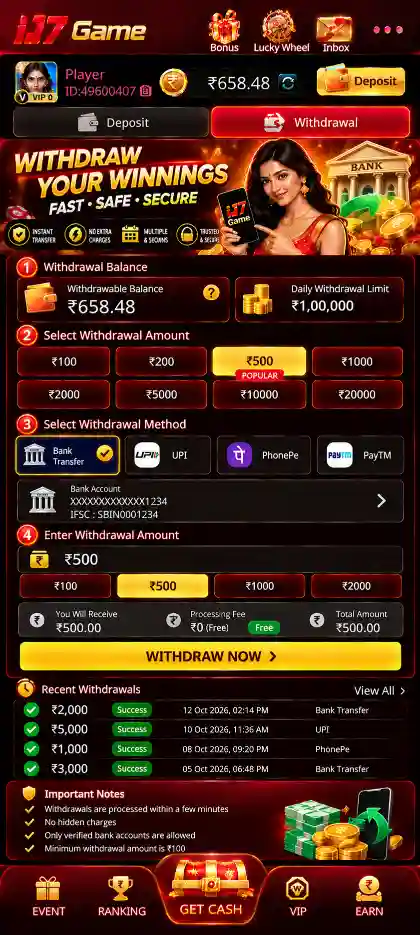
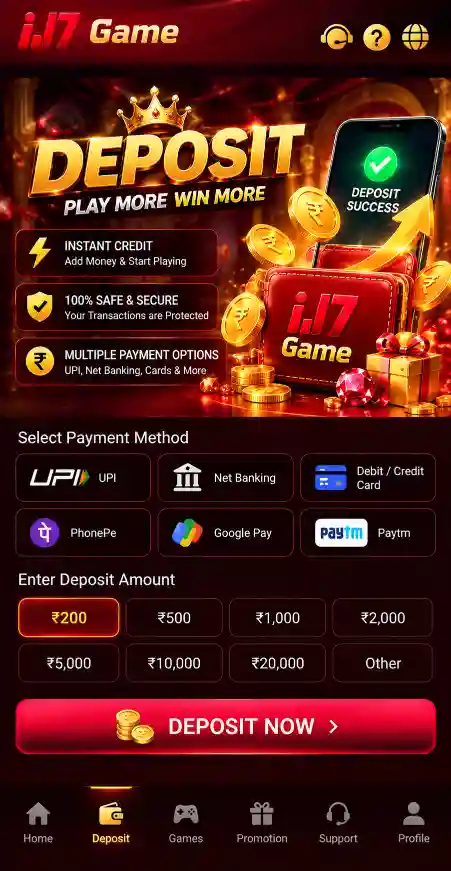
The installed app contains the Hot, Slots, Poker, Fishing and Casino sections, along with provider-labelled collections. Account options are separate from game selections. If you are looking for payment information after setup, the IJ7 Deposit guide and IJ7 Withdrawal guide cover those tasks without mixing them into the APK installation steps.
IJ7 APK, Account and Device Safety
Use the intended download destination and check the address before entering personal information. An APK should come from a source you trust, and Android security messages should be taken seriously. Avoid packages promoted as hacked, unlocked or modified versions of IJ7. Such claims do not establish legitimacy and may expose account information or device data.
- Keep the SMS code used for IJ7 verification private.
- Use a strong login password and do not reuse it across unrelated services.
- Review Android's actual installer name and warning messages.
- Do not disable device-wide malware protections to force installation.
- Protect the phone with a screen lock, especially where wallet and account functions are available.
- Check individual promotion conditions before participating in any bonus offer.
The IJ7 bonus range is ₹200–₹500. A bonus is a promotion, not an assurance of profit or a guarantee of winning. Real-money games can involve financial loss, and users should follow applicable age and local legal requirements before participating.